Include a table data source
Within a supported Microsoft Office application, select dox42 in the ribbon and there Data Map. Here click on D365 BC Table.
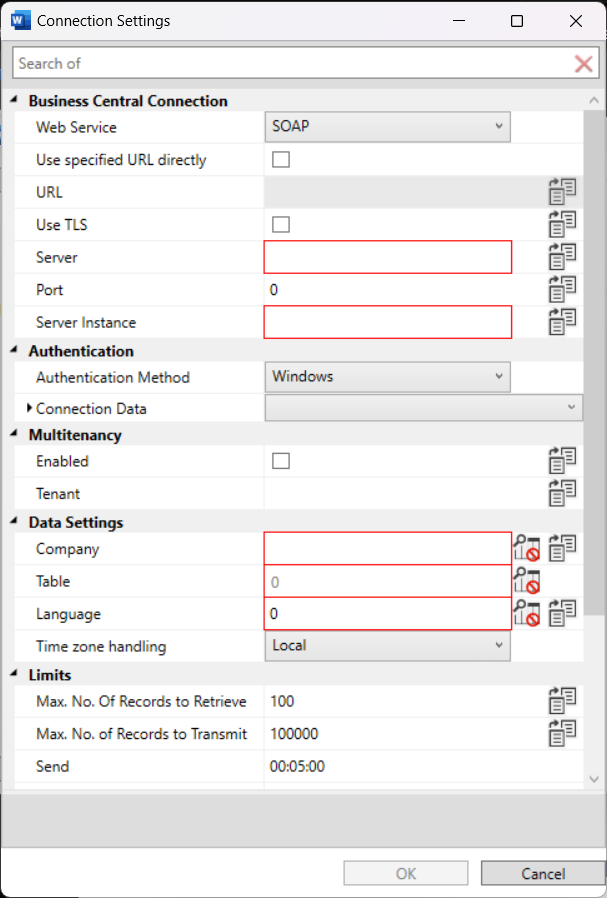
This will take you to the overview page of your data source, where you can manage the settings for it. Now select Connection Settings to set up the connection data. The following figure shows you the most important settings in the view. Explanations to the individual fields can be found in the table at the End of this page.
Tip
Using the Lookup-Icon  you can load most connection settings from another data source, for example Excel, or a dox42 input parameter.
Connection Settings
| Name | Explanation |
|---|---|
| Connection Settings | |
| Web Service | Select the type of access to the web service, recommended is ODataV4 |
| Use specified URL directly | Allows you to enter the URL of the web service directly into the URL field |
| URL | If enabled above, you can enter the URL of the web service directly here |
| Use TLS | Uses Transport Layer Security (TLS) when calling the web service |
| Server | Name or IP address of the Business Central server |
| Port | Name of the SOAP service port |
| Server Instance | Name of the server instance in Service Tier |
| Authentication | |
| Authentication Method | Windows: Logging in to the Microsoft Dynamics 365 Business Central web service is done with the Windows user currently logged in. If you use the dox42 server, the user entered there is used by default. BC-Benutzer: Die Business Central Benutzeranmeldung (NavUserPassword). Geben Sie einen gültigen Benutzernamen inkl. Password an. User Name: Similar to the Windows login, but here you enter the Windows login name incl. password (UserName). Access Control Servie: OAuth2 bzw. Azure AD-Authentifizierung (AccessControlService). Bei der Verwendung von dox42-Online oder Business Central-SaaS zwingend erforderlich. Die Konfiguration erfolgt über einen seitens dox42 bereitgestellten Konfigurationsdialog. |
| Connection Data | Windows, Username |
| Authentification Service | Kerberos oder NTLM |
| security impersonation level | None, Anonymous, Identification, Impersonation, Delegation Depending on the Authentication Method: if the Authentication Method is BC-User then put in BC User Name if Authentication Method User Name write in your User Name |
| User Name | Name of the User |
| Password | Password of the User |
| Domain | User Domain |
| Multitenancy | |
| Enabled | Enables the use of a multitenant environment |
| Tenant | Tenant ID |
| Data Settings | |
| Company | Company selections |
| Table | Selection of the table (only available in the table data source) |
| Report | Report selection (only available in the report data source) |
| Data Item | Using the data element in the report as the basis for data retrieval (only available in the report data source). |
| Request Type | Specify here how the report execution should be done (only available in the report data source). Execute report per data item: The selected report is executed each time a data item is queried. This can result in the report being run multiple times and significantly slowing down the overall process. Execute report once, extract data element locally: Here the report is executed only once. All operations related to data elements take place locally. This is the recommended procedure. |
| Language | Language selection |
| Time zone handling | Local UTC Unspecified Preserve when converting |
| Limits | |
| Max. No. Of Records to Retrieve (Lookup) | Number of records displayed by the system for lookup fields (default value: 100) |
| Max. No. Of Records to Transmit | Number of records retrieved from the system (default value: 100000). |
| Send | Time span, how long a data retrieval may last until the connection is terminated. |
| Close | Maximum time to disconnect from Business Central |
| Open | Maximum time span for establishing a connection to Business Central |
| Data Source | |
| Name | Naming the data source. The system initially defines a name of the table and appends a sequential number. If necessary, the name can be changed. |
| Cache Data | Specifies that data should be cached to reduce the number of web requests. This can significantly improve performance. |
| Sliding Expiration | Specifies the amount of time elements are kept in the cache after the last access. |
| Enable caching in Designer mode | Allows caching even in draft mode. This setting has no effect on caching when generating documents on the server. |
Tip
Sensitive settings like username, password, etc. should be stored in the dox42 crypto data source. In this the information is stored encrypted.